On this page (7 sections)
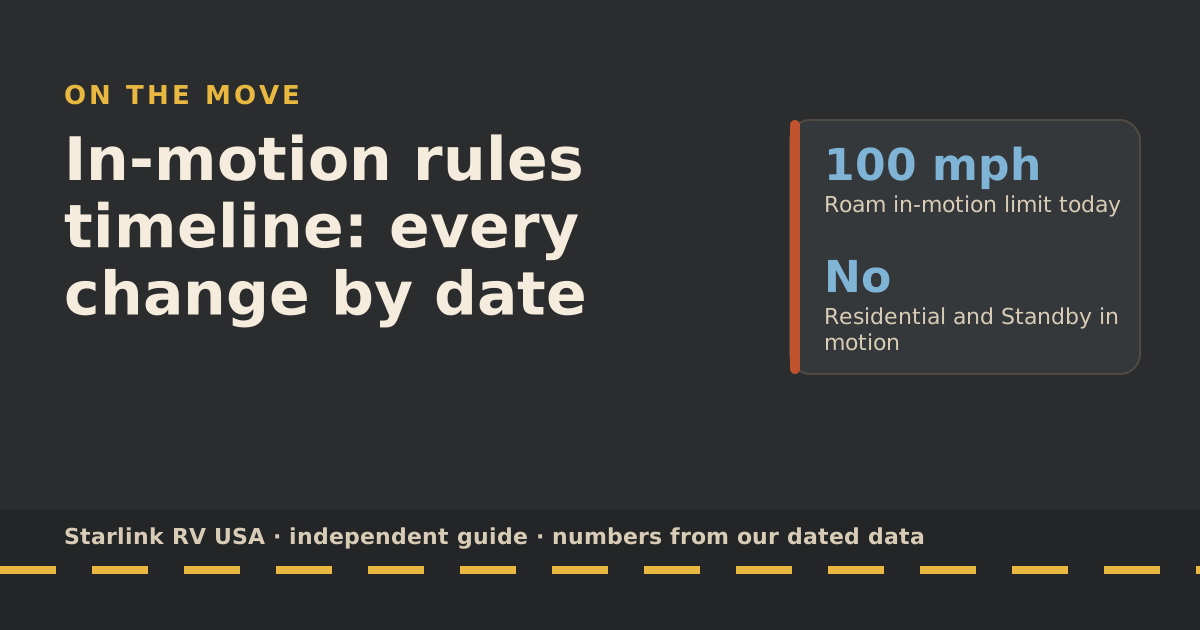
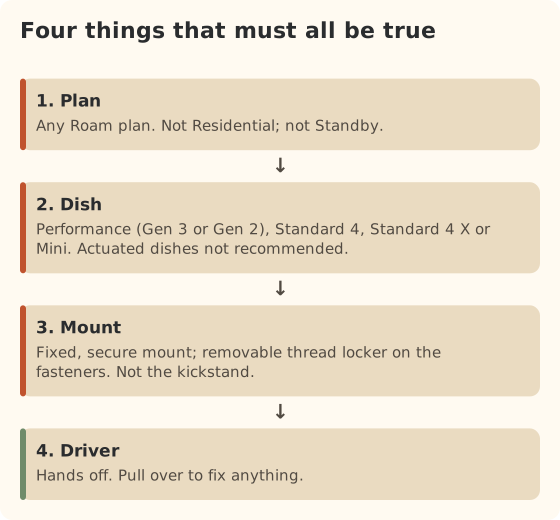
Passengers can stream, browse and make video calls while the RV is moving, as long as four things line up: a Roam plan (every Roam plan allows in-motion use, up to 100 mph), a dish Starlink supports for in-motion use, a fixed mount, and a driver who never touches it. Expect short interruptions under overpasses, in tunnels and under thick trees. Residential plans don’t allow in-motion use at all, and Standby Mode isn’t meant for it.
Here’s what each requirement means in practice, what passengers should expect, and how much data a travel day burns.
The four requirements
1. The plan
From Starlink’s help center, as we last read it:
- Roam: every Roam plan (100GB, 300GB, Unlimited) allows in-motion use, including inland waterways and territorial waters up to 12 nautical miles out.
- Residential: in-motion use is not permitted on any Residential plan. If you try, Starlink’s app shows “Starlink disabled while moving”, which it defines as your plan only allowing service while stationary.
- Standby: Standby Mode is not intended for in-motion use. Reports since early 2026 describe Standby users losing service on the road.
If you pause between camps to save money, un-pause before a drive day if passengers want to be online. The in-motion rules timeline has the dated history of each rule.
2. The dish
Starlink lists these as supported for in-motion use: Performance (Gen 3 and Gen 2), Standard 4, Standard 4 X and Mini; actuated (motorized) dishes are not recommended. It warns that motorized dishes can cause injury or damage, or void the warranty, if used while moving. If you have an older motorized dish, don’t drive with it running.
3. The mount
The kickstand is for parking. A dish on its kickstand on the roof can blow off at road speed. In-motion means a fixed mount:
- Starlink’s Mobility Mount holds the dish at a fixed tilt; Starlink’s boat guide says the Mobility Mount holds the dish at a fixed 8° tilt, mostly to shed water.
- Surface thickness: Starlink recommends a minimum of 1.5 in for the Standard Mobility Mount and 1 in for the Mini’s.
- Fasteners: Starlink says to use removable thread locker (such as Loctite 222) on all mount fasteners so they don’t shake loose.
- Roof racks: the Standard Roof Rack Mount fits the Standard Roof Rack Mount fits rack bars 15–44.5 mm thick and up to 95 mm wide, or compatible T-slots.
Our roof mount guide and mount options cover the choices for each rig.
4. The driver
In-motion service is a passenger feature. The driver doesn’t browse, doesn’t reboot the router, and doesn’t adjust anything. If something needs attention, pull over somewhere safe. State laws on screens and phone use apply to the driver no matter what internet the rig has.
What passengers can expect on the move
| Activity | On the move | Why |
|---|---|---|
| Streaming video | Works, with brief pauses | Buffering usually hides short drops |
| Music and podcasts | Works well | Low data, big buffers |
| Browsing, messaging | Works well | Short drops barely show |
| Video calls | Works, but drops are noticeable | Calls can’t buffer; Starlink says obstruction outages show most during calls and gaming |
| Online gaming | Hit or miss | Same reason as calls |
| Downloaded shows | Always works | No connection needed |
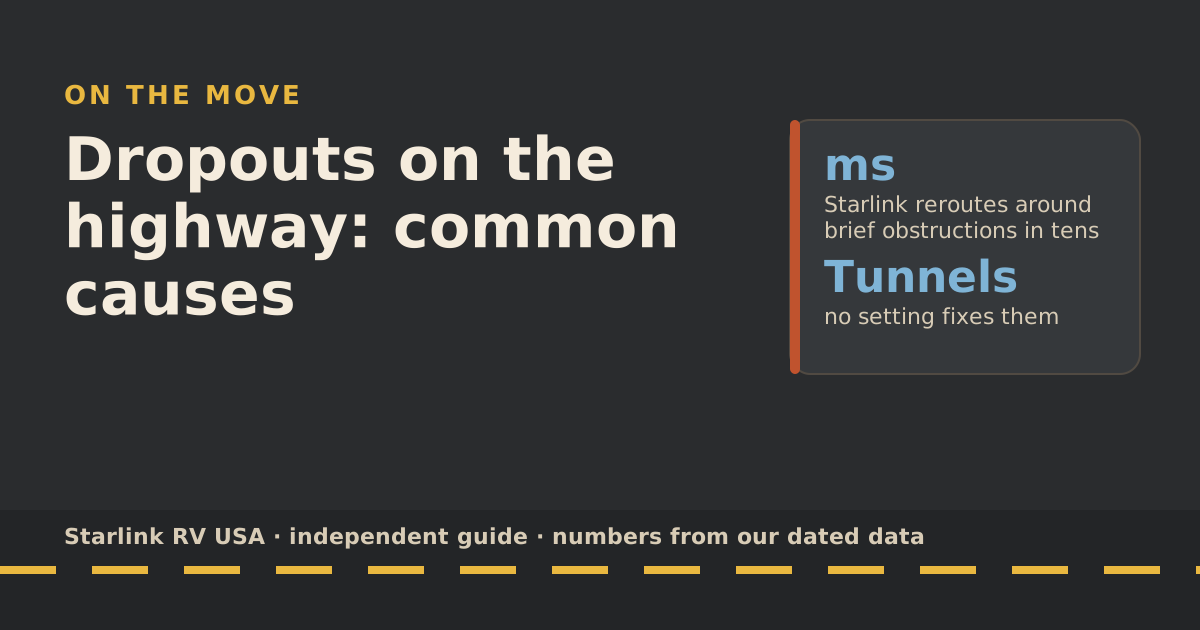
Starlink explains that for mobile dishes it reroutes around obstructions in tens to hundreds of milliseconds. That handles a passing tree. It can’t see through a tunnel or a long concrete overpass, and a forest road with a closed canopy can mean minutes of patchy service. Our highway dropouts guide lists the common causes and fixes.
Power is the other drive-day factor. The Standard draws 75–100 W average and the Mini 25–40 W average, so you need a power source that runs while you drive. That’s a battery and inverter question we don’t cover here.
Data use on drive days
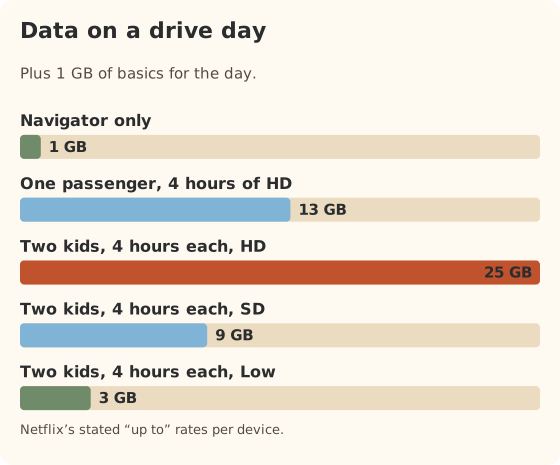
Drive days can use more data than camp days: kids with nothing else to do, and every tablet streaming at once. The rates below are the services’ own figures from our data-use reference, plus 1 GB of basics for the day.
| Drive-day pattern | Hours | GB for the day |
|---|---|---|
| Navigator only: maps, weather, messages | — | 1 |
| One passenger, 4 hours of HD | 4 | 13 |
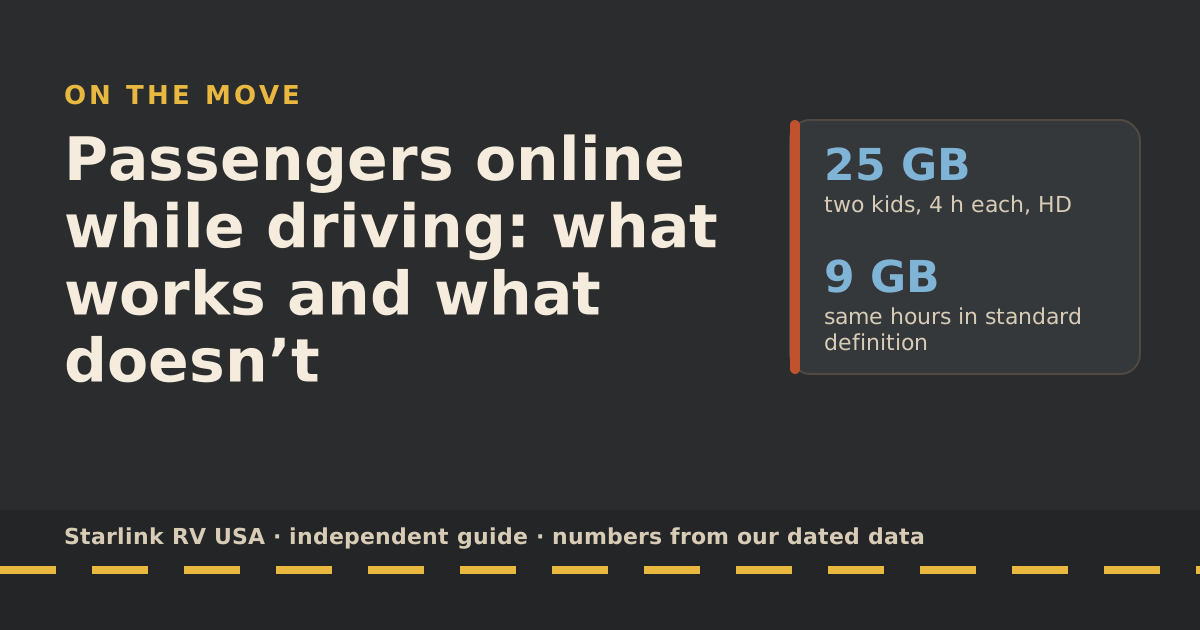
| Two kids, 4 hours each, HD | 8 | 25 |
| Two kids, 4 hours each, standard definition | 8 | 9 |
| Two kids, 4 hours each, Netflix “Low” setting | 8 | 3 |
| Passenger on a 1-hour 1:1 video call | 1 | 2 |
What that means for your allowance:
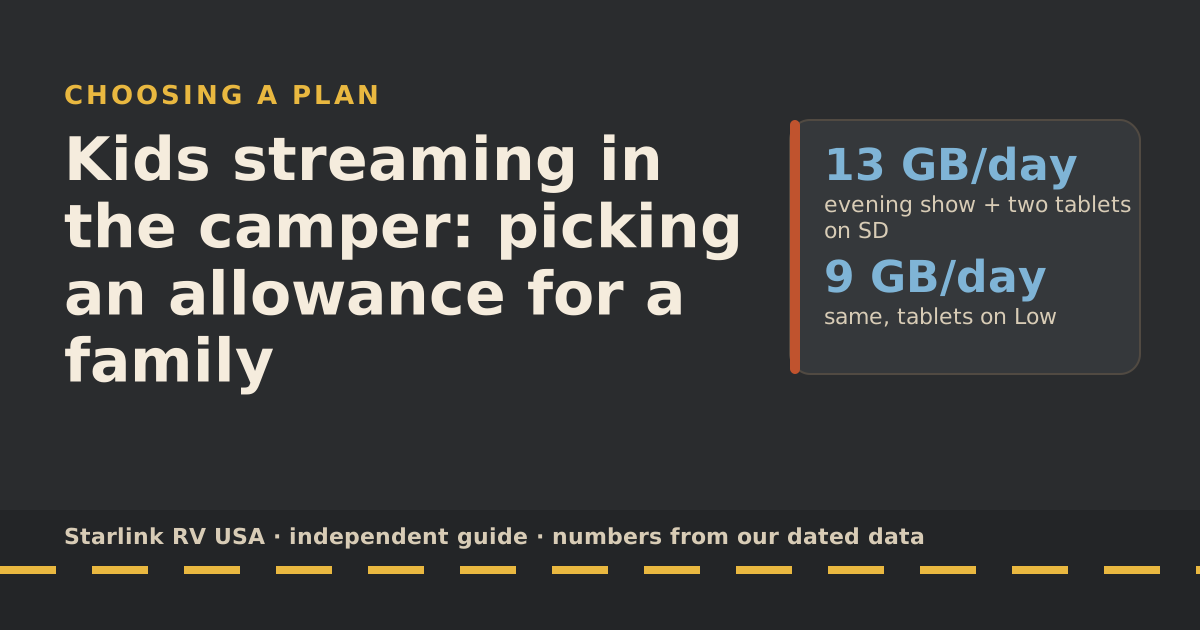
- On Roam 100GB, a single HD drive day for two kids uses about a quarter of the month’s allowance.
- On Roam 300GB, you can afford a few of those days a month, alongside evening streaming at camp.
- On Unlimited, data isn’t the constraint on land.
Three ways to cut drive-day data
- Download before you leave. Most streaming apps let you download episodes on campground Wi-Fi or at home. Downloaded shows use no data on the road and never buffer.
- Turn down the quality on tablets. A small screen doesn’t need HD. Netflix’s Low setting uses up to 0.3 GB an hour by its own figures.
- Turn off autoplay. It stops the next episode from loading when nobody’s watching.
A drive-day plan for families
- The night before: download two or three episodes per kid on campground Wi-Fi or at home. Downloads skip both buffering and data.
- Before pulling out: make sure service isn’t paused, the app shows no alerts, and the mount looks right.
- Set expectations: tell the kids streams may pause under bridges and in forests. Downloaded shows won’t.
- Assign a tech passenger. The front-seat passenger, not the driver, handles “the Wi-Fi isn’t working”: restart the tablet, switch to a download, or wait for the next open stretch.
- Save calls for stops. If a passenger has a work call, schedule it for a planned stop or use cellular.
- At the lunch stop: glance at the data counter if you’re on Roam 100GB or 300GB. A heavy drive day can use a big share of the month.
Taken together, that plan turns most drive days into a fraction of the data, with fewer interruptions, and nobody up front touches a screen.
Common mistakes
- Driving on Standby and expecting navigation data. Since early 2026, reports say Standby users lose service while moving.
- Driving with a Residential plan. It’s not permitted; the app will say so.
- Leaving the dish on its kickstand on the roof. It isn’t a mount.
- Letting the driver “just check” the router. Pull over.
- Forgetting the border. In Mexico, in-motion use on land is prohibited in Mexico (boats only there).
What we don’t know
- How often your route drops. It depends on overpasses, tunnels, trees and canyons. Starlink doesn’t publish in-motion uptime by road type.
- How your mount behaves at highway speed. That depends on the mount, the rig and the install. Check fasteners before each trip with our pre-trip inspection.
What to do next
Estimate your family’s month with the data-use reference, then size the plan with the travel plan picker. If several kids stream every day, the family allowance guide shows which plan fits.
Questions people ask
Can passengers use Starlink while the RV is moving?
Yes, on a Roam plan with a supported dish on a fixed mount. Starlink says every Roam plan allows in-motion use, up to 100 mph. Residential plans don’t allow it, and Standby Mode isn’t intended for it.
Can I put the dish on the roof on its kickstand while driving?
No. In-motion use needs a fixed, secure mount. Starlink sells a Mobility Mount for the Standard and the Mini, and its guides set minimum mounting-surface thickness and thread-locker use for the fasteners.
Can kids stream Netflix on Starlink while driving?
Usually, with brief interruptions under overpasses, in tunnels and under heavy trees. Downloading episodes before the drive avoids both the drops and the data use.
How much data does streaming use on a drive day?
Netflix says HD uses up to 3 GB an hour and standard definition up to 1 GB. Two kids streaming four hours each is about 24 GB in HD or 8 GB in SD, plus whatever else the family uses.
Is it legal to use Starlink while driving?
Using the service in a moving vehicle is allowed on Roam plans in the US, which is on Starlink’s approved in-motion list. What drivers may do with screens and phones is set by state law. The safe rule: the driver never uses or adjusts it while moving.
Will passengers lose service in Mexico?
Yes, on land. Starlink says in-motion use on land is prohibited in Mexico (boats only there). Plan offline entertainment for drive days there.
Sources
- Can I use Starlink in-motion? (Starlink help center), retrieved Oct 6, 2026
- Obstructions Explained (Starlink help center), retrieved Oct 6, 2026
- What are the alerts on my Starlink App? (Starlink help center), retrieved Oct 6, 2026
- How to install Starlink on boats (Starlink help center), retrieved Oct 5, 2026
- Mobility Mount installation guide, Standard (Starlink PDF), retrieved Oct 5, 2026
- Mini Mobility Mount installation guide (Starlink PDF), retrieved Oct 5, 2026
- Standard accessories guide (Starlink PDF), retrieved Oct 5, 2026
- Standard specification sheet (Starlink PDF), retrieved Oct 5, 2026
- Mini specification sheet (Starlink PDF), retrieved Oct 5, 2026
- How to control how much data Netflix uses (Netflix Help Center), retrieved Oct 5, 2026
- Zoom system requirements: bandwidth (Zoom Support), retrieved Oct 5, 2026
- Roam plans and kits for US addresses (starlink.com public order data), retrieved Oct 5, 2026
Prices and plan rules on this page are filled in from our dated data files when the site is built; hover a number to see when we checked it.
Research and spec-based analysis. We haven’t used Starlink in an RV, van or boat; this post is built from Starlink’s own documents, carrier pages and dated reports, cited above. Links to Starlink’s plan pages here use the site owner’s own referral link: the owner may get a referral reward if you order, and your price is the same. There are no affiliate links. Starlink and Roam are trademarks of Space Exploration Technologies Corp. Starlink RV USA is not affiliated with, endorsed by, or sponsored by SpaceX or Starlink. Spotted an error? Tell us.