On this page (11 sections)
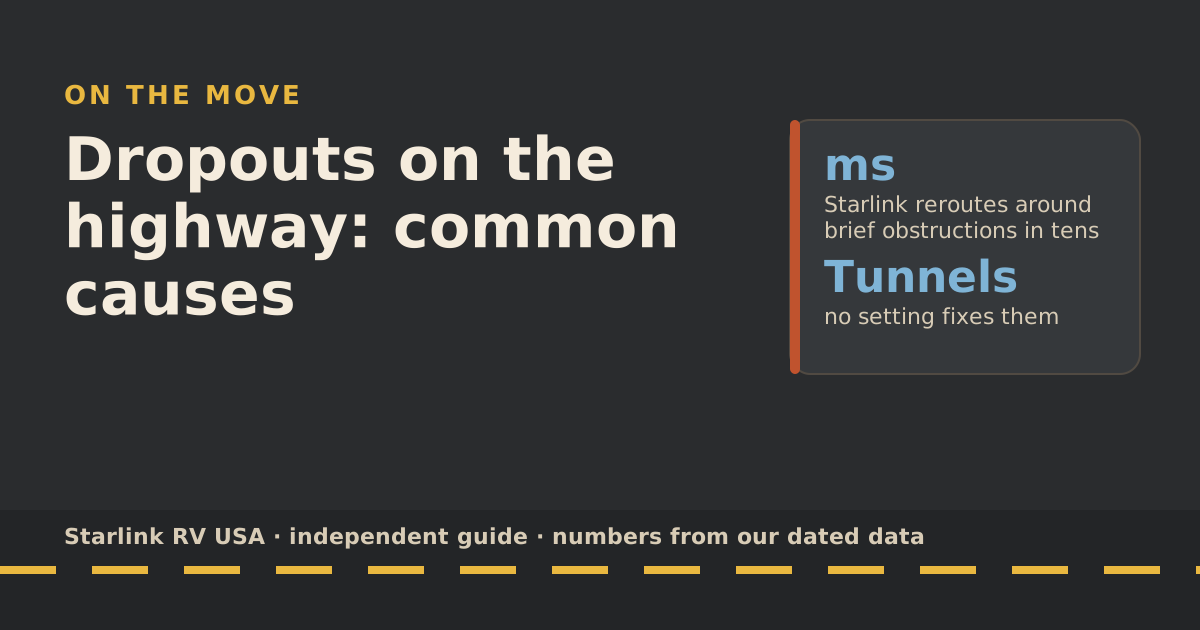
Starlink usually drops on the highway because something blocks the whole sky for a moment: an overpass, a tunnel, a tree tunnel or a canyon wall. Those short gaps are normal and no setting removes them. If the connection drops and stays down with an alert in the app, the cause is usually the plan, since Residential and Standby don’t allow in-motion use. Drops that started after a rough road point to the mount or cable, and reboots on the road point to power.
Start with the pattern. When and how it drops tells you which of five causes you have.
Sort it by pattern
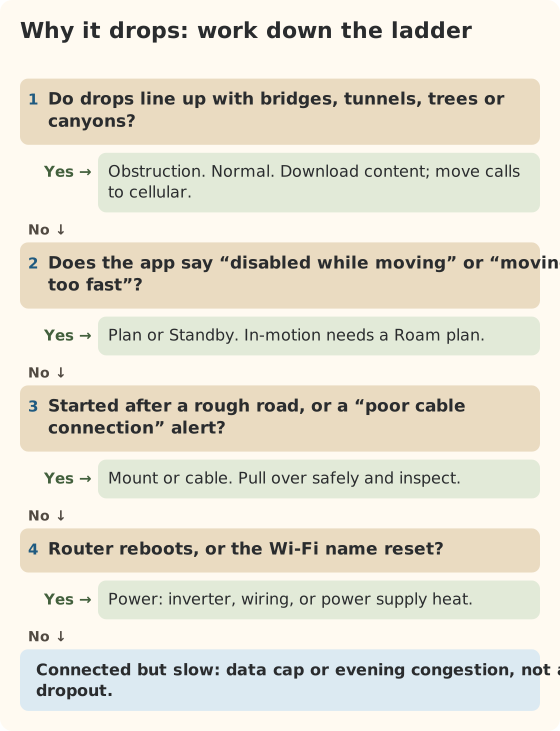
| Pattern | Likely cause | First check |
|---|---|---|
| Brief gaps at bridges, tunnels, forests, canyons | Obstruction | Nothing to fix; plan around it |
| No service with “disabled while moving” | Plan doesn’t allow in-motion | Plan type and Standby status |
| No service with “moving too fast” | Over the plan’s speed limit, or Residential away from home | Plan type |
| Drops began after rough roads; “poor cable connection” | Mount or cable | Fasteners, connectors, cable run |
| Router reboots; Wi-Fi name back to default | Power | Inverter, wiring, power supply heat |
| Connected but very slow | Data cap or congestion | Data counter; time of day |
Cause 1: overpasses, tunnels, trees and canyons
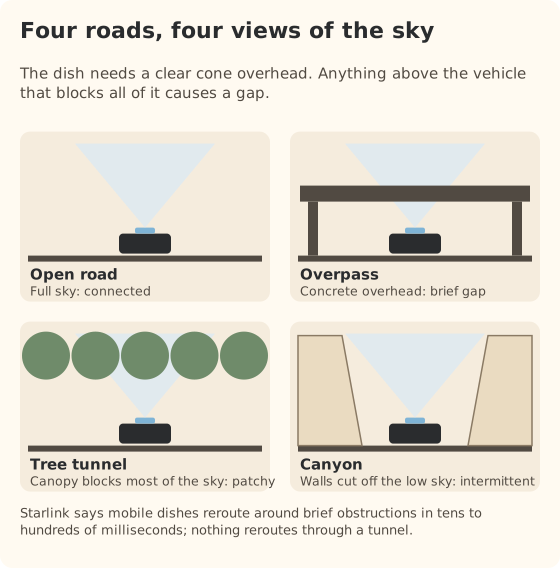
The dish needs a clear view of the sky. Starlink’s own explanation: a dish in the US has tens of satellites in view, and for mobile dishes it reroutes around dynamic obstructions in tens to hundreds of milliseconds. That’s why a single tree or a short bridge is often a blip you barely notice.
The trouble is anything that blocks every satellite at once:
- Overpasses and long bridges you drive under. A wide interchange can be a few seconds of concrete overhead.
- Tunnels. Nothing gets through.
- Tree tunnels. Forest highways with a closed canopy can mean minutes of patchy service.
- Canyon walls and road cuts. Tall rock on both sides cuts off the low part of the sky. Starlink wants an unobstructed 360° view of the sky from 20° above the horizon up; a deep canyon removes a lot of that.
- Your own rig. A dish mounted low, beside an AC unit or a tall roof box, can lose part of its view.
What helps: streaming apps buffer through short gaps; video calls don’t. Download shows before the drive, and move calls to cellular, or to camp. A router that fails over to cellular can carry a call through the gap; see our failover guide.
Cause 2: the plan or Standby
If service stops and stays stopped, open the app before anything else. Two alerts tell you it’s the plan:
- “Starlink disabled while moving.” Starlink defines it as your plan only allowing service while stationary. Starlink’s rules: in-motion use is not permitted on any Residential plan, and Standby Mode is not intended for in-motion use. Since early 2026, Standby users have reported this alert on drive days.
- “Starlink moving too fast.” Starlink says it has detected the dish moving too fast for your plan; on Residential, the fix is returning to the registered address. Roam’s limit is 100 mph. In an RV at road speed, this alert almost always means the plan, not your speed. See what “moving too fast” means.
Outside the US, add one more: in-motion use on land is prohibited in Mexico (boats only there).
Cause 3: the mount or cable
If drops started after a washboard road, a pothole or a long day of crosswinds, suspect hardware:
- Loose fasteners. Starlink says to use removable thread locker (such as Loctite 222) on all mount fasteners so they don’t shake loose, which tells you vibration loosening happens.
- Metal around the base. Starlink warns that third-party metal mounts that wrap around the dish’s base, or setting it directly on metal, can hurt GPS and are not supported.
- Cable damage. A pinched or chafed cable can produce Starlink’s “Poor cable connection” alert, which it defines as a link speed between dish and router that suggests a bad connection or cable damage. Its fix: unplug and replug both ends, and make sure connectors are dry and clean.
Pull over before you inspect anything. Our pre-trip inspection is the full list.
Cause 4: power
If the router reboots or the Wi-Fi name suddenly reverts to the default, it’s often power:
- Inverter or DC supply cutting out on engine start, under load, or when the house batteries dip.
- Router resets. Starlink says the router factory-resets after 6 power cycles in a row. Flaky power on a drive day can trigger that.
- Heat. Starlink says the power supply sheds 30–40 W at full load and shuts off if it overheats. A closed cabinet on a hot afternoon can cause throttling or a shutdown. The app shows “Power supply thermal throttling” or “Thermal shutdown” when that’s the cause.
The Standard draws 75–100 W average on average. Power systems are their own topic, which we don’t cover on this site.
Cause 5: it’s slow, not dropping
If it stays connected but pages crawl:
- Data cap. On Roam 100GB or 300GB, Starlink says after the 100GB or 300GB runs out, service drops to unlimited low-speed data that handles email, calls and texts; streaming, big downloads and video calls are limited. Check the counter in the app. Our guide to running low on data covers the options.
- Evening congestion. Starlink says Roam plans are deprioritized compared with other plans, and lists peak hours as about 6 to 11 p.m. local time.
- Weather. Starlink says moderate to heavy rain, snow and hail can cause momentary dropouts.
A drive-day routine that avoids most problems
Most drive-day trouble is preventable before the wheels turn.
Before you leave camp
- Check the plan state. If you paused service, un-pause it before a drive day where passengers want to be online; Standby isn’t meant for in-motion use.
- Look at the app’s home screen for alerts left over from the last stop.
- Walk around the mount. A quick look at fasteners and the cable run takes a minute. After washboard roads, put a wrench on it.
- Download the drive’s entertainment. Shows, playlists and offline maps don’t care about overpasses.
- Move important calls to before you leave or after you arrive.
On the road
- Passengers should expect short gaps at bridges and in forests. Streaming usually rides through them; calls don’t.
- Nobody adjusts anything while moving. If the router needs a restart, it waits for the next stop.
At the next stop
- If service was patchy all day with no obvious cause, check the app for alerts and the mount for movement before you assume the dish is failing.
Edge cases worth knowing
- Crossing into Mexico. in-motion use on land is prohibited in Mexico (boats only there), so drive-day service stops at the border even on a plan that works there.
- Long tunnels and urban interchanges. Expect longer gaps than a single bridge. A cellular backup through a dual-WAN router carries calls through them.
- Mountain passes. Canyon walls and switchbacks under cliffs can mean on-and-off service for miles. Downloads are your friend.
- Heavy rain on the highway. Starlink says moderate to heavy rain can cause momentary dropouts; that’s weather, not hardware.
Common mistakes
- Resetting the router for an obstruction drop. It won’t help and can make it worse.
- Blaming the dish for a plan alert. Read the alert text first.
- Inspecting the mount on the shoulder of a highway. Find a safe stop.
- Assuming a better router fixes tunnels. It can switch to cellular; it can’t see through rock.
What we don’t know
- How often a given highway drops. Starlink doesn’t publish in-motion uptime by road, and conditions change with traffic and season.
- How well a specific third-party mount holds up. That depends on the mount and the install.
What to do next
If the cause was the plan, check the dated rules in the rules changelog; in-motion and Standby rules changed in 2026. For a quick refresher on what’s allowed today, read the in-motion rules timeline. For other failures, the troubleshooting page covers five common ones.
Questions people ask
Why does Starlink keep dropping while I drive?
Most often, something blocks the sky for a moment: overpasses, tunnels, tall trees or canyon walls. If it drops and stays down with an alert, check your plan; Residential and Standby don’t allow in-motion use. Drops after rough roads point to the mount or cable.
Does Starlink work under overpasses?
Not while you’re under one. The dish needs a clear view of the sky. Starlink says mobile dishes reroute in tens to hundreds of milliseconds around obstructions, so short bridges cause brief blips; long overpasses and tunnels cause a gap until you’re out.
Why does the app say “Starlink disabled while moving”?
Starlink defines that alert as your plan only allowing service while the dish is stationary. In-motion use needs a Roam plan. It also appears for Standby users, since Standby isn’t meant for in-motion use.
Can a loose mount cause dropouts?
It can. A dish that shakes or shifts loses its steady view of the sky. Starlink also warns that third-party metal mounts that wrap around the dish base, or setting it on metal, can hurt GPS and aren’t supported.
Is my Starlink slow or dropping?
If pages load slowly but don’t fail, it’s speed, not dropouts. On Roam 100GB or 300GB, check whether you hit the allowance. In the evening, Starlink says Roam plans are deprioritized at busy times, with peak hours around 6 to 11 p.m.
Will a better router stop the dropouts?
No, not obstruction drops. A dual-WAN router can switch to cellular during a gap, which helps calls, but it can’t give the dish a view through a tunnel.
Sources
- Obstructions Explained (Starlink help center), retrieved Oct 6, 2026
- What are the alerts on my Starlink App? (Starlink help center), retrieved Oct 6, 2026
- Can I use Starlink in-motion? (Starlink help center), retrieved Oct 6, 2026
- Does weather impact my service quality? (Starlink help center), retrieved Oct 6, 2026
- How do I install my power supply unit to prevent overheating? (Starlink help center), retrieved Oct 6, 2026
- Slow Speeds: Outside/During Peak Hours (Starlink help center), retrieved Oct 6, 2026
- How to install Starlink on boats (Starlink help center), retrieved Oct 5, 2026
- Standard specification sheet (Starlink PDF), retrieved Oct 5, 2026
- What are the Roam service plans? (Starlink help center), retrieved Oct 5, 2026
Prices and plan rules on this page are filled in from our dated data files when the site is built; hover a number to see when we checked it.
Research and spec-based analysis. We haven’t used Starlink in an RV, van or boat; this post is built from Starlink’s own documents, carrier pages and dated reports, cited above. Links to Starlink’s plan pages here use the site owner’s own referral link: the owner may get a referral reward if you order, and your price is the same. There are no affiliate links. Starlink and Roam are trademarks of Space Exploration Technologies Corp. Starlink RV USA is not affiliated with, endorsed by, or sponsored by SpaceX or Starlink. Spotted an error? Tell us.