On this page (9 sections)
A cellular-first setup uses cell data wherever it works and switches to Starlink only when the cell link fails. It takes a router with two internet inputs: the cellular modem or phone on the main one, Starlink on the backup. On a capped Roam plan, that order saves money, because every GB the cell plan carries is a GB you don’t spend from Roam 100GB or 300GB. And when trees block the dish, cell often still works.
This guide is the narrow version of our travel routers page: why cell goes first, how to wire it, when it switches, and what it does to your data math.
Why cellular first
- Cell is already there. Most campgrounds near towns and highways have some signal.
- It saves capped satellite data. Roam 100GB and 300GB drop to low speed after the allowance: after the 100GB or 300GB runs out, service drops to unlimited low-speed data that handles email, calls and texts; streaming, big downloads and video calls are limited.
- It covers different gaps. Trees and canyons block the dish; distance from towers blocks cell. Together they fail less often than either alone.
- No setup at short stops. For a one-night stop with good LTE, you may not unpack the dish at all.
When to flip it: if you’re on Roam Unlimited ($175/mo) and your cell plan is small, put satellite first and cell second. The cheaper or uncapped link should always be primary.
How it’s wired
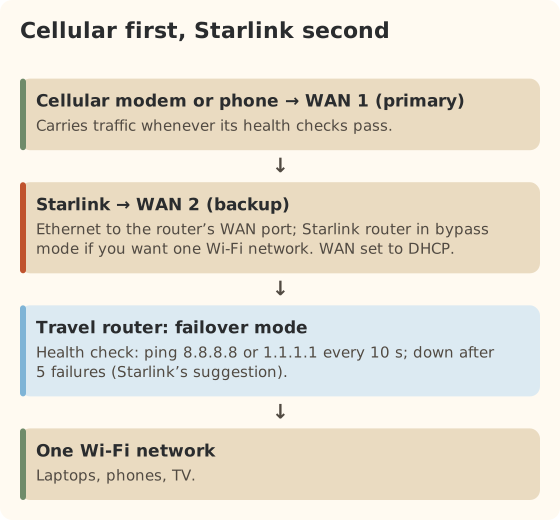
- The router. Any travel router with two WAN inputs (Ethernet, USB tether or a built-in modem) and a failover setting. We haven’t tested models, so we don’t name a best one.
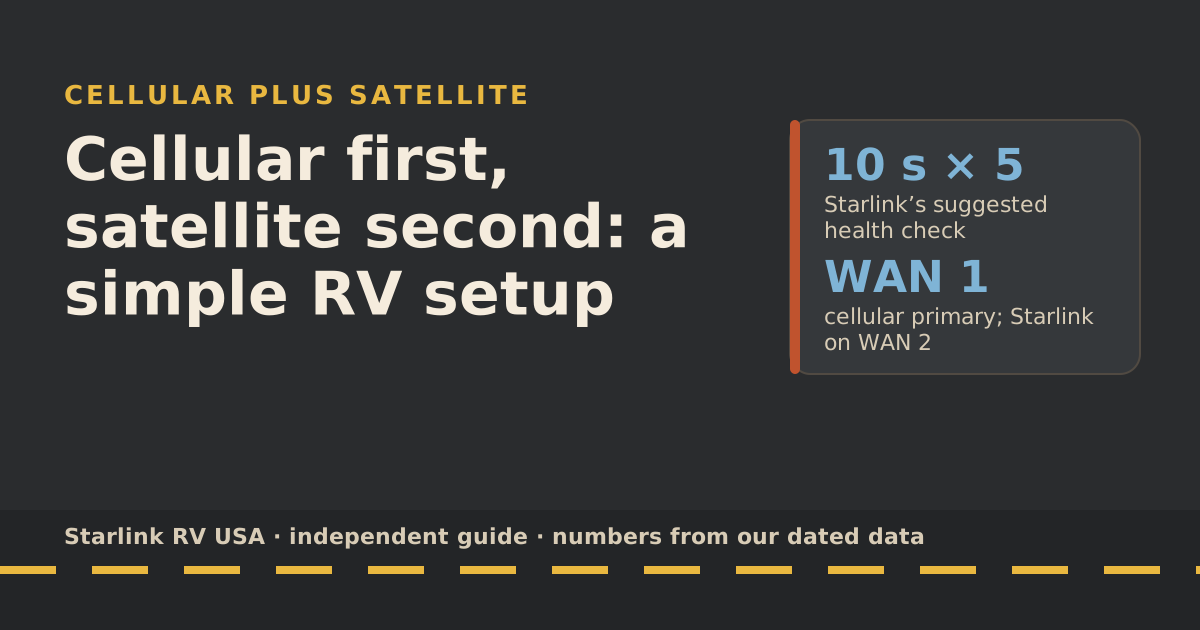
- Cellular to WAN 1. A cellular modem, a carrier gateway, or a phone tethered by USB.
- Starlink to WAN 2. Starlink’s help center lists the connection for each kit; on most it’s an Ethernet run to your router’s WAN port.
- Bypass mode, if you want one Wi-Fi network. Starlink says bypass mode turns off the Starlink router’s Wi-Fi so your router fully manages the network. On Router 3 and Router Mini, Starlink says you need a factory reset to turn it back off.
- WAN settings. Starlink says to set the WAN to DHCP so it gets an address from Starlink automatically.
When it switches
The router decides with health checks: it keeps testing each link and marks one “down” after a run of failures. Starlink’s recommended settings for third-party routers:
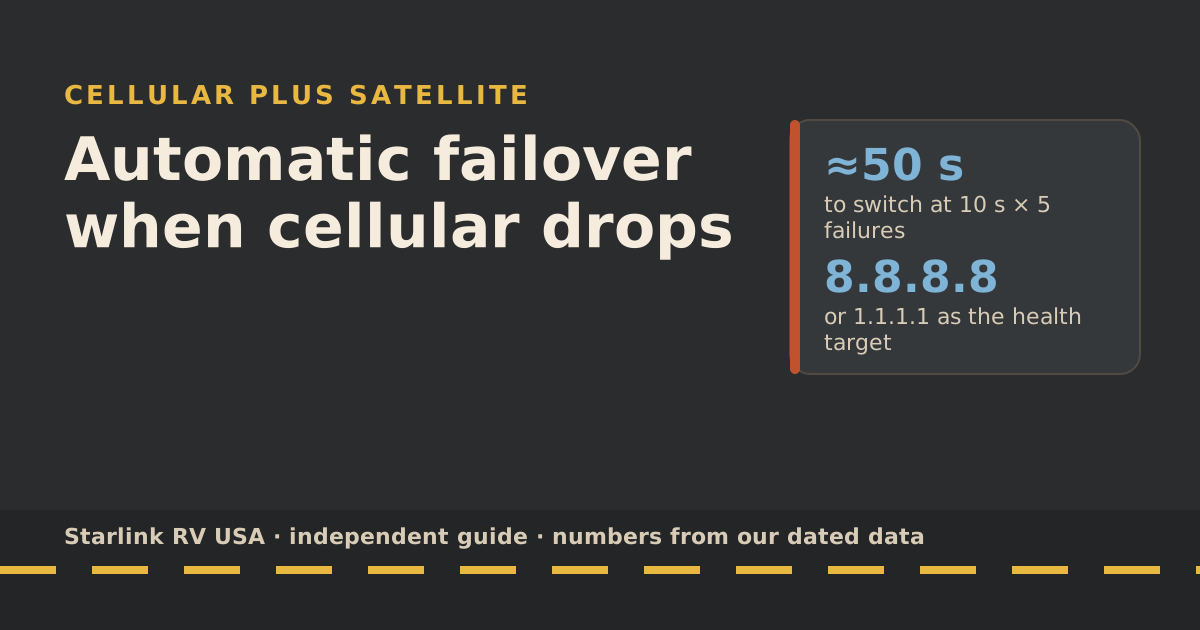
- What to ping: a public IP such as 8.8.8.8 or 1.1.1.1. Starlink notes its own DNS servers don’t answer pings.
- How often: every 10 seconds.
- When to call it down: after 5 failures in a row.
At those settings, the router needs roughly 50 seconds of failed checks before it switches. Our failover guide goes deeper on switch time, fail-back and testing.
Manual switching is fine too. Many RVers leave the dish packed at stops with good cell and only set it up when the router shows the cell link struggling.
Data savings: the math
Take a family using about 13 GB a day in our planning numbers (an evening HD show plus two tablets on SD; see the data-use reference). A 30-day month on the road is about 390 GB.
| Share carried by cellular | GB left for Roam | Smallest Roam plan |
|---|---|---|
| None | 390 | Unlimited |
| One-third | 260 | Roam 300GB |
| Two-thirds | 130 | Roam 300GB |
| Three-quarters | 98 | Roam 100GB, just |
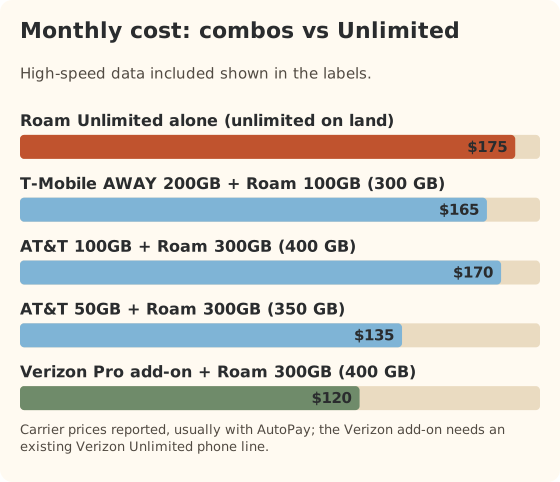
Here’s what those combinations cost per month from our data. Carrier prices are reported by carrier pages or reviews and usually assume AutoPay, before taxes and fees.
| Combination | Monthly | High-speed data included |
|---|---|---|
| Roam Unlimited alone | $175/mo | Unlimited on land |
| T-Mobile AWAY 200GB + Roam 100GB | $165 | 300 GB |
| AT&T DataConnect 50GB + Roam 300GB | $135 | 350 GB |
| AT&T DataConnect 100GB + Roam 300GB | $170 | 400 GB |
| Verizon Pro add-on (with a Verizon Unlimited line) + Roam 300GB | $120 | 400 GB |
The honest read: for heavy users on the road all month, the combinations land near the price of Unlimited and add a second network. That redundancy is the real value. For lighter users, a cheap cellular plan plus Roam 100GB is often cheaper than any single big plan. The travel plan picker compares these for your numbers.
A month in practice: three kinds of stops
How a cellular-first setup behaves over a typical month on the road:
| Stop | Cell signal | What the router does | What you do |
|---|---|---|---|
| Town campground or RV park | Strong | Stays on cellular | Leave the dish packed if you like |
| State park in the hills | Patchy | Uses cellular, fails over to Starlink when cell drops | Set up the dish; let failover handle the gaps |
| Boondocking on public land | None | Marks cellular down, runs on Starlink | Set up the dish; budget Roam data |
That middle row is where the setup earns its keep. Patchy cell signal comes and goes with weather and campground crowds; the router moves to satellite when it drops and back when it returns, without anyone touching anything.
For the boondocking row, data budgeting matters. If cellular carries nothing for a week, all of that week comes out of the Roam allowance. Check the counter in the Starlink app before a long dry stretch.
Setting it up, step by step
- Get both links working on their own first. Starlink through its own router; cellular through its modem or phone.
- Connect cellular to WAN 1 and Starlink to WAN 2 on the travel router.
- Set WAN 2 to DHCP, as Starlink suggests for third-party routers.
- Set failover priority: WAN 1 primary, WAN 2 backup. Use failover mode, not load balancing.
- Set health checks on both WANs: a public IP such as 8.8.8.8 or 1.1.1.1, every 10 seconds, down after 5 failures.
- Decide on bypass mode. If you want one Wi-Fi network, enable bypass on the Starlink router; remember that on Router 3 and Router Mini, Starlink says leaving bypass mode requires a factory reset.
- Test it by unplugging the cellular link and watching the router switch. The failover guide has a full test routine.
Common mistakes
- Load balancing two capped plans. Spreading traffic across both burns both allowances. Use failover.
- Two Wi-Fi networks in a small rig. Turn on bypass mode or switch off one network so devices don’t hop.
- Counting on Standby as a backup. Starlink says Standby keeps low-speed data up to 500 kbps, and it isn’t meant for in-motion use.
- Health-checking Starlink’s DNS. Starlink says its DNS servers don’t respond to ping, so the check fails even when the link is fine.
- Forgetting power. Two radios and a router add to the load. The Standard alone draws 75–100 W average.
What we don’t know
- Which router is best. We haven’t tested routers, and we don’t recommend models we haven’t verified.
- Carrier terms. Whether each cellular plan can be started and stopped monthly, and what hardware it needs, varies; read the carrier’s current terms.
- Your cell coverage. It decides how much data cellular can really carry.
What to do next
If you want the switch to be automatic and clean, read automatic failover when cellular drops. If you’re deciding whether you need satellite at all, read when a hotspot beats any satellite plan. Then size both plans in the travel plan picker.
Questions people ask
Can I use cellular first and Starlink as a backup?
Yes. A multi-WAN (dual-WAN) router does it: cellular is the primary connection, Starlink the backup, and the router switches when its health checks see the primary fail. Starlink’s help center describes the third-party router setup.
Why use cellular first instead of satellite?
To save capped Roam data, and because cell is often fine where most RVers stop. On Roam 100GB or 300GB, every GB cell carries is one you don’t spend. It also covers you when trees block the dish.
Do I need bypass mode on the Starlink router?
Only if you want your router to run the Wi-Fi. Starlink says bypass mode turns off the Starlink router’s Wi-Fi so a third-party router fully manages the network. On Router 3 and Router Mini, getting out of bypass mode takes a factory reset.
Can Standby Mode be my backup?
Not a useful one. Standby keeps only low-speed data, up to 500 kbps, and Starlink says it isn’t intended for in-motion use. Fine for messages, not for a work call.
Will my video call survive the switch?
Usually it drops and reconnects. Switching from one connection to another changes your public address, so most calls and VPNs reconnect. The failover guide covers switch times.
Sources
- Can I use my own router with Starlink? (Starlink help center), retrieved Oct 6, 2026
- What is bypass mode? (Starlink help center), retrieved Oct 6, 2026
- Can I add a third-party router or mesh system? (Starlink help center), retrieved Oct 6, 2026
- How to install Starlink on boats (Starlink help center), retrieved Oct 6, 2026
- T-Mobile AWAY review (SatelliteInternet.com), retrieved Oct 5, 2026
- DataConnect plans (AT&T), retrieved Oct 5, 2026
- Roam plans and kits for US addresses (starlink.com public order data), retrieved Oct 5, 2026
- What are the Roam service plans? (Starlink help center), retrieved Oct 5, 2026
- How to control how much data Netflix uses (Netflix Help Center), retrieved Oct 5, 2026
- Hotspot plans (Verizon), retrieved Oct 5, 2026
- How does pausing service work? (Starlink help center), retrieved Oct 5, 2026
- Standard specification sheet (Starlink PDF), retrieved Oct 5, 2026
Prices and plan rules on this page are filled in from our dated data files when the site is built; hover a number to see when we checked it.
Research and spec-based analysis. We haven’t used Starlink in an RV, van or boat; this post is built from Starlink’s own documents, carrier pages and dated reports, cited above. Links to Starlink’s plan pages here use the site owner’s own referral link: the owner may get a referral reward if you order, and your price is the same. There are no affiliate links. Starlink and Roam are trademarks of Space Exploration Technologies Corp. Starlink RV USA is not affiliated with, endorsed by, or sponsored by SpaceX or Starlink. Spotted an error? Tell us.